LINE Image Quality Loss: Check Sending and Saved Photos
Troubleshoot LINE image quality loss by comparing the source, sending method and downloaded file. Check original-photo options, album differences and pixel dimensions.
 Image Enhancer Editorial Team
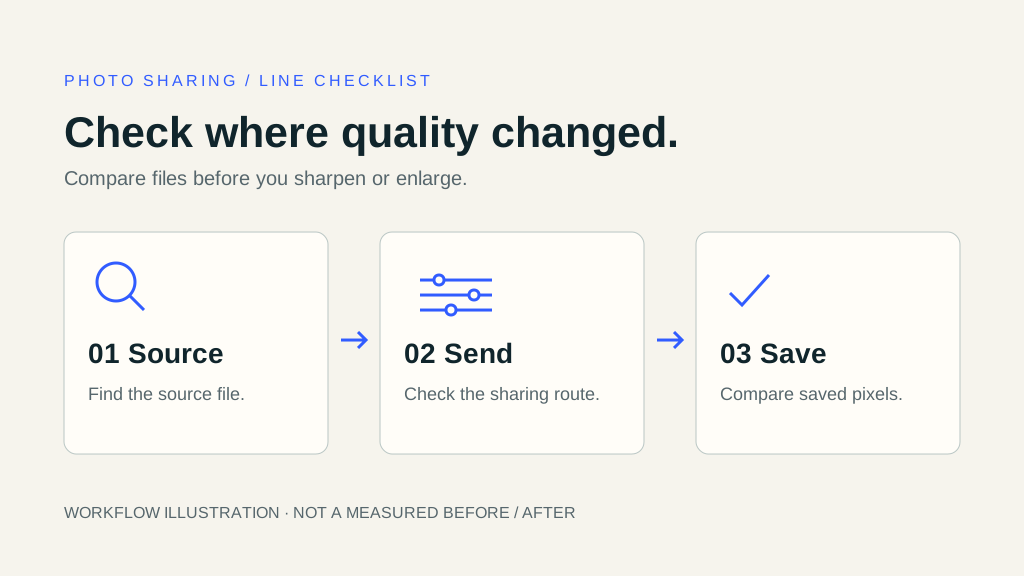
LINE image quality loss is easier to diagnose when you compare three things: the sender's source file, the way it was shared and the recipient's saved copy. A small chat preview is not enough evidence that the original photograph has been damaged.
The cover illustrates this troubleshooting sequence. It is not a LINE screenshot or a measured compression result. Start by finding where the difference appears before enlarging or sharpening anything.
Find where quality changed
Ask the sender to open the original outside LINE. Then open the received photo, save it using the available download control and inspect that file in the device's photo or file viewer.
- If the source is already soft, changing the sending method will not restore its detail.
- If only the chat thumbnail looks soft, judge the opened and saved file before editing it.
- If the saved copy has fewer pixels, investigate the source selected and sharing route.
- If dimensions match but small details differ, compare the same crop at the same zoom. Dimensions alone do not prove identical encoding.
A useful comparison is a label, a face and an area of fine texture. Keep those crops consistent instead of comparing one image fitted to the screen with another enlarged several times.
Start with the source file
Choose the camera original or the actual exported design, rather than a screenshot of it or a copy previously saved from a conversation. Ask whether the sender still has a larger source in their library or original document.
For example, a design exported at 2,400 × 1,600 pixels and a screenshot measuring 1,200 × 800 are different inputs. If the smaller one was selected, correcting that choice is more useful than applying AI to the received copy. These numbers are an illustrative example, not LINE's upload limits.
Keep the source separate and send one representative photo first. Confirm that the recipient can save the desired version before repeating the process for an entire collection.
Separate chat photos from albums
Chat sending options
LINE's official photo sending guide describes opening a conversation, using the image icon and selecting a photo to send. Check the actual photo-quality or original-photo options offered by your installed app before sending. Labels and available controls can vary with the device and version.
If an original option is unavailable, do not assume an album setting or a setting found on another platform applies. Record which route you used and compare its downloaded result. Avoid repeatedly forwarding a received copy when the sender can select the source again.
Album conditions
Albums have separate rules. The Japanese LINE album help, checked on November 13, 2026, lists original-quality album uploads for eligible LYP Premium or LINE MUSIC with LYP Premium Enjoy members. Do not treat this Japan-specific album condition as a rule for every chat attachment or every country.
Check the current help for your account before buying a membership solely to solve an image problem. An album is also not a substitute for keeping an independent source backup.
Compare the downloaded pixels
In the device's file information, record width and height for the source and saved copy. Compare the file type and size as supporting clues, then examine visible detail.
Suppose the source is 2,400 × 1,600 and the downloaded file is 1,200 × 800. The width and height have each halved. That establishes a dimension difference, but it does not identify which step caused it without checking the selected input and route. File size alone is even less conclusive: a larger file is not automatically a sharper photograph.
If a clean source is available, request a fresh copy using a method both people can verify. For exact file delivery, compare file checksums where practical; a matching filename or pixel count is weaker evidence. Use a private, access-controlled transfer method for sensitive material rather than publishing it to an open link.
Consider enhancement when the source is missing
If the best available copy is genuinely small, the image enlargement tool can be used to compare a larger version. The photo enhancement guide explains checks for photographic details. Neither changes LINE's sending behavior or guarantees recovery of information removed earlier.
Keep the received original and inspect faces, lettering and patterns after processing. Reject invented details, especially in receipts or other records. If the picture is a screenshot, follow the screenshot quality workflow and verify text against the source whenever possible.
Frequently asked questions
Do equal dimensions prove equal quality?
No. Cropping, encoding, editing and display differences can matter even when width and height match. Compare content and, when exact identity matters, the actual files.
Can original sending restore a small source?
No. A sending option cannot recover detail that was missing before the photo was selected. Locate a better original first.
Should I save a screenshot?
Prefer the available download function. A screenshot captures the display and may include a scaled preview, interface elements or extra margins. Keep screenshots for documenting a screen, not as a substitute for obtaining the photo file.
Related guides
Use the JPEG guide for compression defects and export decisions, or the screenshot guide for small text. Return to the blog or the homepage for other image preparation tasks.